New Toggle Controls for Union Link in Bio Tabs
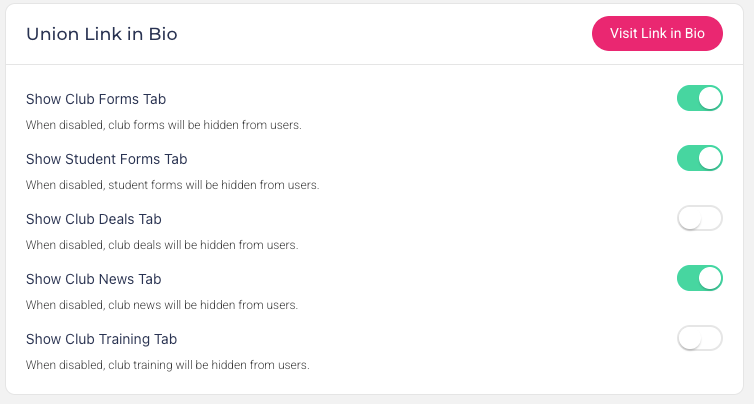
We’re excited to introduce a new update in the Unions Portal that gives admins more control over what users see in the Campus Portal navigation.
This enhancement adds new visibility settings that allow you to show or hide specific tabs in the Union Link in Bio menu, helping you tailor the experience to your campus needs.
What’s New
In the Unions Portal, under Settings → Campus Settings → Union Link in Bio, three new toggle options have been added:
Show Club Deals Tab – control whether the Club Deals tab appears in the Campus Portal
Show Club News Tab – enable or hide the Club News tab
Show Club Training Tab – toggle visibility of the Club Training tab
When a toggle is disabled, the corresponding tab will be hidden from users in the Campus Portal menu.
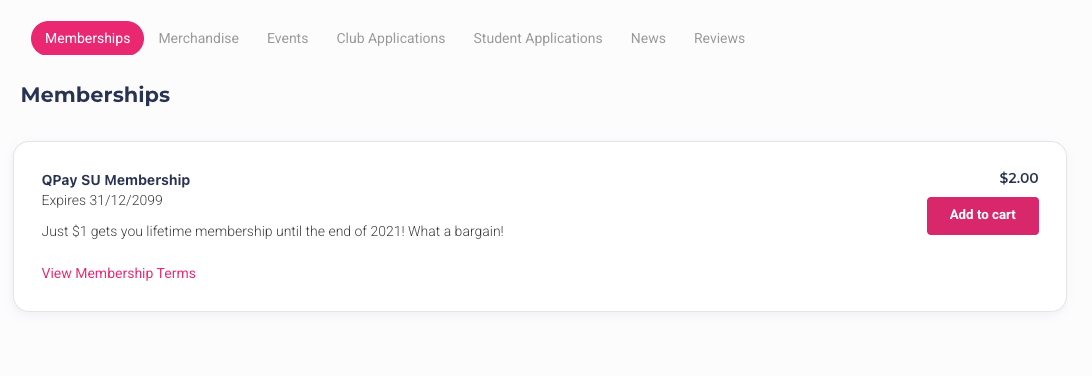
How It Works
Log in to the Unions Portal.
Navigate to Settings → Campus Settings.
Open the Union Link in Bio section.
Enable or disable the toggles for Club Deals, Club News, or Club Training.
The Campus Portal menu updates automatically to reflect your selections.
This enhancement helps you:
Customize the Campus Portal navigation based on active features
Reduce clutter by hiding unused or inactive sections
Create a more focused and relevant experience for students and clubs
With these new controls, managing what appears in your Campus Portal is now simpler and more flexible.