Changelog

Follow new updates and improvements to Rubric.

March 18th, 2026

Our latest feature release allows election creators and editors to designate Returning Officers for an election.

When one or more returning officers are selected, only those users can view the election, edit it, and assign or remove other returning officers. This supports controlled access and clear responsibility for running the election.

How can I assign Returning Officers?

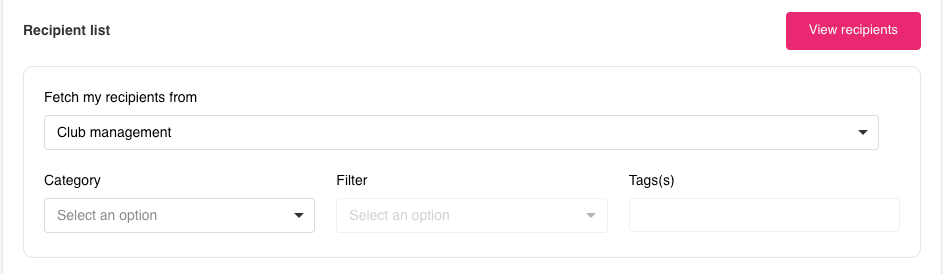
On the first step of the Create Election or Edit Election screen, you’ll see a field called Returning Officers (Optional). Click the field to see a list of people you can choose from. Select as many as you need; each person appears as a tag.

When you save the election, only the people you selected as returning officers will be able to open and manage that election. You can change the list at any time by editing the election (if you are a returning officer or have the right to edit it).

Once returning officers have been assigned, any non–returning officer who attempts to access election pages will see the following:

Use Cases

  • Delegation to a dedicated team
    Assign returning officers to manage the election end-to-end, limiting access and reducing accidental changes.

  • Sensitive or high-stakes elections
    Restrict access to trusted individuals to maintain confidentiality and control until results are released.

  • Clear accountability
    Assign a single returning officer to ensure one clear point of responsibility.

  • Delegation without full access
    Allow someone to run the election without granting broader admin rights across the platform.

March 9th, 2026

We’re excited to introduce Branch Tags, a new organization wide access control feature in Rubric. Branch Tags allow unions to control which users can view or interact with specific resources by assigning tags to both users and resources across the platform.

This provides a flexible way to manage access across different branches, departments while keeping everything within the same Rubric environment.


How Branch Tags Work

Branch Tags act as labels that connect users with the resources they are allowed to access.

If a user has one or more branch tags assigned, they will only be able to access resources that share at least one of the same tags. This ensures that users only see forms, programs, reports, or societies that are relevant to their branch.

Users who have no branch tags assigned will continue to have access to resources across all branches.

Branch Tags can only be assigned or managed by administrators. Administrators themselves cannot be restricted by branch tags, ensuring they always retain full platform access.


Creating Branch Tags

Branch Tags are created within the Union Settings area. Administrators can add, edit, or remove tags using the Branch Tags management panel.

Tags are added using a simple input system where admins can type a tag name and press Enter to create it. Existing tags can be edited directly, and up to 50 custom branch tags can be maintained for an organization.


Assigning Branch Tags to Resources

Once created, branch tags can be assigned to resources across Rubric to control visibility.

Branch tagging is supported across multiple areas of the platform, including:

  • Forms

  • Reports

  • Volunteer Programs

  • Training Programs

  • Societies and Clubs

When tags are assigned to a resource, only users who share at least one of those tags will be able to access it. This makes it easy to limit certain programs, reports, or workflows to specific branches or departments.

Key Considerations: Branch Restrictions and Resource Visibility

  • When a branch tag is assigned to a user, they can only access resources (Forms, Cases, Societies etc.) that have at least one of the same branch tags.

  • If a resource has one or more branch tags, only users who share at least one of those branch tags can see it.

  • Users with no branch tags can see resources from all branches.

  • Only administrators can assign or remove branch tags on users and resources.

  • Users who are administrators cannot be assigned branch tags.


Use Cases

Branch Tags enable powerful access control across multi-branch organizations.

  • Department-Based Access
    Restrict forms, reports, or programs to specific teams such as finance, volunteering, or student services.

  • Branch-Specific Programs
    Ensure volunteer programs, training courses, or appointment bookings are only visible to users responsible for those areas.

  • Society or Club Oversight
    Assign branch-specific staff to manage only the societies within their branch.


With Branch Tags, Rubric now provides a simple but powerful way to manage access across large organizations, ensuring the right people see the right resources at the right time.

March 9th, 2026

We’re excited to introduce two new Student Question types in the Rubric Form Builder: Membership Picker and Training Completion Picker. These new fields allow forms to directly reference a student’s existing data on the platform, making submissions more accurate while reducing manual input.

Both question types are available under the Student Questions section in the form builder and allow students to select from information already associated with their account.


Membership Picker

The Membership Picker allows students to select one or more of their active memberships purchased on the platform directly within a form. Instead of manually entering membership details, the form automatically pulls a list of memberships linked to the student.


Training Completion Picker

The Training Completion Picker allows students to select from training programs they have completed on the platform. This makes it easy to reference verified training records directly in form submissions without requiring students to manually provide proof or documentation.


By connecting forms directly with student membership and training records, Rubric now enables smarter, more reliable data collection without manual verification.

Stay tuned for more powerful form building capabilities coming soon.

February 27th, 2026

We’re excited to announce new updates that make managing data imports and bank details in Rubric faster and more streamlined. These updates empower unions and campus admins to handle bulk club, grant, membership type, and executive data, as well as set bank details directly from the platform.

Comprehensive Data Imports

Admins can now import data in just a few steps:

  1. Club Imports – Upload and manage all club information efficiently, including club names, categories, and campus affiliations. Access via: Club Management > Import Clubs

  2. Grant Imports – Add grant records seamlessly. Imports can handle multiple grants at once, keeping financial records accurate and up to date. Access via: Funding > Import Grants

  3. Membership Types Import – Quickly import membership types for your clubs. This ensures all member data is consistent and properly categorized across the campus. Access via: Club Management > Import Membership Types

  4. Exec Imports – Import executive member details, including positions and contact information. This allows for quick onboarding of new executives and accurate role tracking. Access via: Club Execs > Import Execs

These import tools eliminate tedious manual entry, reduce errors, and save time for admins managing large datasets.

Union Bank Details Made Easy

Admins can now set or update union bank details as a preset for new clubs directly via:
Settings > Campus Settings > Set Bank Details

This ensures all financial information is accurate and up to date for seamless transactions and reporting.

With these updates, managing your union’s data and finances has never been simpler. Stay tuned for more enhancements to make Rubric even more powerful!

February 18th, 2026

We are thrilled to introduce the completely rebuilt Volunteering Programs in Rubric. This new system lets unions create structured programs, manage volunteer applications, assign and track shifts, and monitor hours automatically without needing separate tools or manual tracking.

Note on Legacy Volunteering: While the previous volunteering tools remain available for now, they are officially moving into a deprecation phase. We encourage all teams to begin migrating to this new, more powerful "Programs" infrastructure to take advantage of the enhanced features below.

Two Flexible Program Types

Unions can choose how volunteers move through the volunteering program:

Single Step

Volunteers apply and, once approved, can immediately start booking shifts.

Two Step

Volunteers submit a registration form and once approved, they can book shifts.This is ideal for programs that require screening or approval before allowing access to shifts.


Shift Management Made Simple

Shifts are organized into Shift Groups to provide clear structure and flexibility.

Create Multiple Shift Groups

Each volunteer program can have multiple Shift Groups, enabling you to manage different activities or time periods (e.g., Orientation Week, Semester 1, Special Events) within the same program. This allows each group to run independently with its own schedule and visibility.


Manage Shifts

Shifts can be assigned either through volunteer applications or directly by admins. In the application-based flow, volunteers apply for shifts and admins review and approve them. Alternatively, admins can manually assign one or multiple shifts to one or multiple volunteers at once, duplicate existing assignments, and optionally notify volunteers.

Admins can also adjust completed shift durations to ensure accurate hour tracking, allowing flexibility for late arrivals, early departures, overtime, or partial completion.


Volunteer Activity Dashboard

The Volunteer Activity Dashboard gives students a clear overview of their participation within a program. At the top of the profile, volunteers can see their enrolled program, personal details, and total completed hours, along with quick links to view the program or full profile.

The dashboard displays real-time shift statistics and a detailed table of all shift bookings related information. Volunteers can drop off eligible upcoming shifts when allowed and view their form submissions and statuses. On the main campus profile, a summary widget highlights upcoming shifts and key volunteering statistics, providing a quick snapshot of engagement and progress.


Stay tuned for more exciting features up ahead!

February 10th, 2026

We’re excited to introduce Editable Submission Emails, giving you more control over the confirmation emails sent after a form is submitted.

This update allows admins to customise the completion email for all forms, ensuring messaging is clear, branded, and relevant to your users.

What’s New
You can now edit the completion email template for forms directly within the admin interface. The editor allows you to:

  • Update email content and layout

  • Use shortcodes (such as name and form title) to personalise messages

  • Preview changes before saving

  • Apply a consistent confirmation experience across all forms

How It Works

  1. Navigate to the form you want and click on the actions button (Three dots on the right).

  2. Click Edit Submisson Email Template.

  3. Customise the email content using the editor and available shortcodes.

  4. Save the template to apply it to form submissions.

This enhancement helps you:

  • Deliver clearer confirmation messages to users

  • Maintain consistent branding across form communications

  • Provide users with useful next steps after submission

With Editable Completion Emails, your form confirmations are now just as flexible and powerful as the forms themselves.

February 8th, 2026

We’re excited to introduce Merchandise Approvals, giving unions greater control over how club merchandise is reviewed before it becomes publicly visible.

This update introduces a structured approval workflow that applies across both the Union Admin and Club Portal experiences.

What’s New
Merchandise approval is now available in Rubric through the Merchandise Manager, allowing admins to:

  • Review all submitted merchandise in a central dashboard

  • See clear statuses for Pending, Approved, and Rejected items

  • Approve or decline merchandise directly from the table

  • View the original submission details for each item

Approval Settings (Required)
To enable this workflow, merchandise approvals must be turned on in Union Settings.

In Settings → Merchandise Approvals, admins can:

  • Require approval for affiliated clubs

  • Require approval for unaffiliated clubs

  • Require re-approval when approved merchandise is edited

When Reset approval status when approved merchandise is edited is enabled, any changes made to an already approved item will automatically reset its status to Pending, ensuring updates are reviewed before going public.

The approval process only applies when these settings are enabled.

Club Portal Experience
When merchandise approval settings are turned on at the union level, the Club Portal experience updates automatically.

Clubs will now:

  • See the approval status of newly created merchandise

  • View statuses such as Pending Union Approval or Rejected

  • Understand when edited merchandise requires re-approval before becoming public

This provides clubs with clear visibility into where their merchandise sits in the approval process.

How It Works

  1. Enable merchandise approvals in Settings → Merchandise Approvals.

  2. Clubs create or edit merchandise in the Club Portal.

  3. New or edited items are marked as Pending and are not made public.

  4. Admins review submissions in the Club Merchandise Manager.

  5. Approved merchandise becomes available based on your listing rules.

This enhancement helps you:

  • Maintain control over public merchandise listings

  • Ensure edits to approved items are reviewed

  • Provide clubs with transparency around approval status

  • Keep merchandise governance consistent across Rubric

With Merchandise Approval now available in Rubric, unions and clubs benefit from a clearer, more controlled merchandise approval workflow.

February 4th, 2026

We’re excited to introduce Club Imports, a new feature that makes it faster and easier to create or update clubs in bulk using a CSV file.

This update streamlines club management by allowing admins to upload club details, review them before import, and automatically affiliate clubs to the union.

What’s New
Unions can now upload a CSV file to create or update multiple clubs at once. The import flow includes:

  • A downloadable CSV template with all required fields

  • An option to auto-affiliate imported clubs to the union using the default affiliation date

  • A review step to confirm club details before completing the import

How It Works

  1. Navigate to Club Management → Import Clubs.

  2. Download the club import CSV template to ensure all required fields are included.

  3. Upload your completed CSV file.

  4. (Optional) Enable Auto affiliate imported clubs to the union.

  5. Review the uploaded club data in the preview table.

  6. Confirm and complete the import.

This enhancement helps you:

  • Save time managing large numbers of clubs

  • Confidently review changes before importing

  • Keep club records accurate and up to date

With Club Imports, managing clubs at scale is now simpler, faster, and more reliable.

January 23rd, 2026

We’re excited to introduce Recurring Events, making it easier to create, manage, and maintain events that repeat over time. This update helps reduce manual work while providing greater flexibility and consistency for regularly scheduled activities.

How It Works

Create an Event
Navigate to Events and select Create Event to get started. Fill in the event details as you normally would.

Enable Recurrence
While creating the event, choose the Recurring Event option to indicate that the event will occur multiple times.

Set a Recurrence Pattern
Define how often the event repeats daily, weekly, or monthly based on your needs. This allows you to plan ahead and schedule events in bulk.

Edit Individual Events
Each event within a recurring series can be edited individually. If changes are made to a specific occurrence (such as time, location, or description), the update will follow the existing event approval process before being published.

Manage Recurring Events
View, edit, update, or archive recurring events at any time from the Manage Events section, giving you full control over both the series and individual events.

What This Means

Recurring events make it significantly easier for clubs and unions to organize and host ongoing activities without needing to recreate events each time. Regular meetings, training sessions, workshops, and weekly gatherings can now be scheduled in advance with minimal effort.

Event approvals are also taken into consideration, ensuring that all events whether part of a series or edited individually remain consistent with platform guidelines while still allowing flexibility where needed.

January 19th, 2026

We’re excited to introduce Public Forms, making it easier than ever to collect responses from anyone no account required.

How It Works

Create a Form
Navigate to Forms and select Create Form to get started.

Choose Form Type
Select Standard Form, then choose Students Only as the form audience.

Enable Anonymous Submissions
In Form Settings, enable Anonymous Submissions to allow responses without requiring users to sign in.

What This Means

Once anonymous submissions are enabled, anyone can participate in the form, even without creating or having an account, making it ideal for feedback collection, registrations, etc.

Note: Not all forms can be made public. Public access is available only for “student“ forms (forms that are submitted by students instead of clubs).